
HOW TO EDIT PRODUCT GALLERY IN DIVI?
Divi Theme Builder is a 100% no-code website builder for WordPress website. Building and editing your website is even easier with ‘Visual Builder’. Even a Sales Advisor with zero knowledge in website building can edit our Sales Advisor website template. Follow this step-by-step guide on how to edit your gallery in Divi.
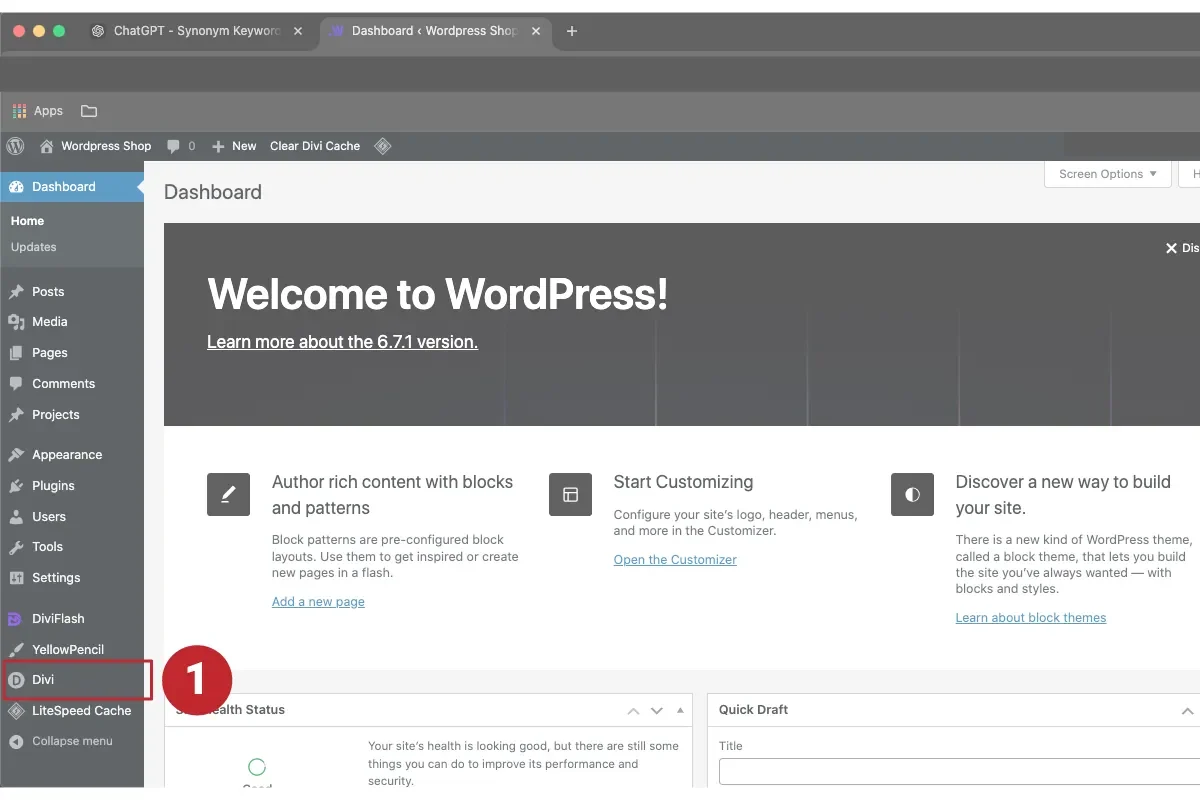
1. OPEN DASHBOARD.
Hover your mouse to the top left of your WordPress admin bar to access the dashboard (speedometer icon). In the dashboard, scroll down to look for ‘Divi’.
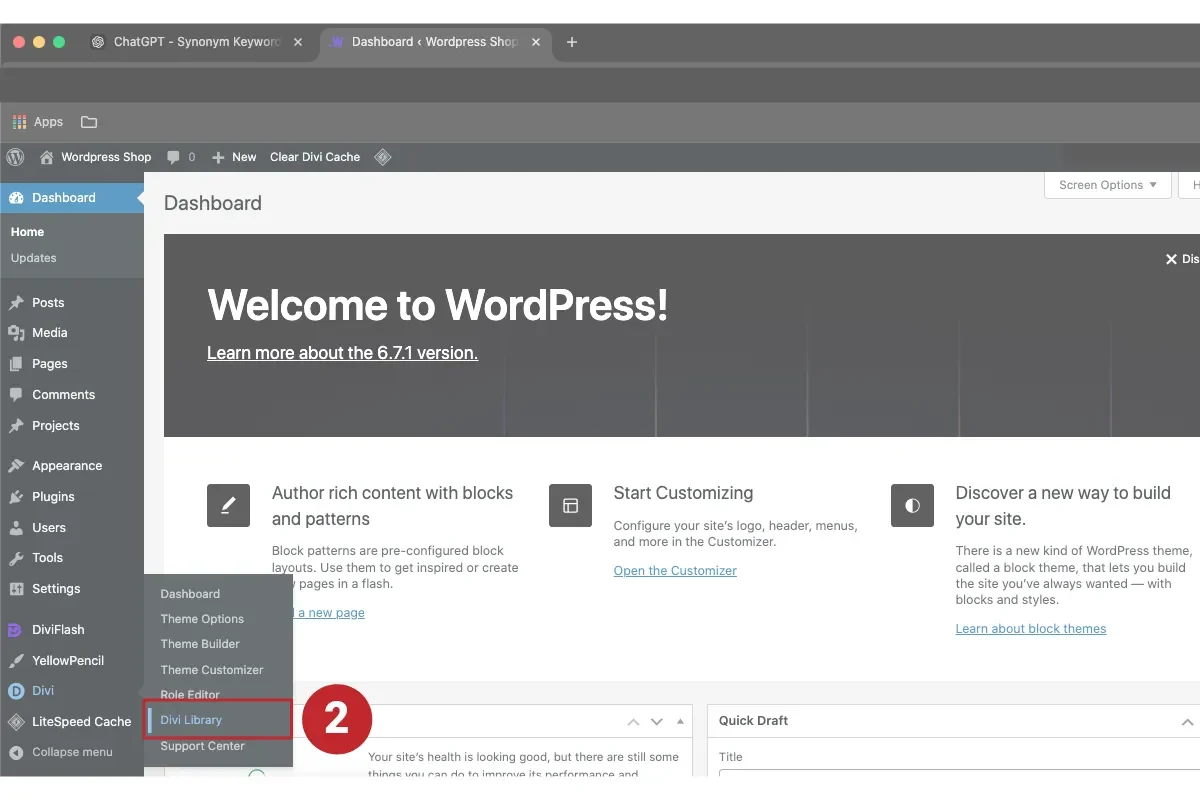
2. OPEN DIVI LIBRARY.
Open ‘Divi Library’ to access all the Product Gallery layout.
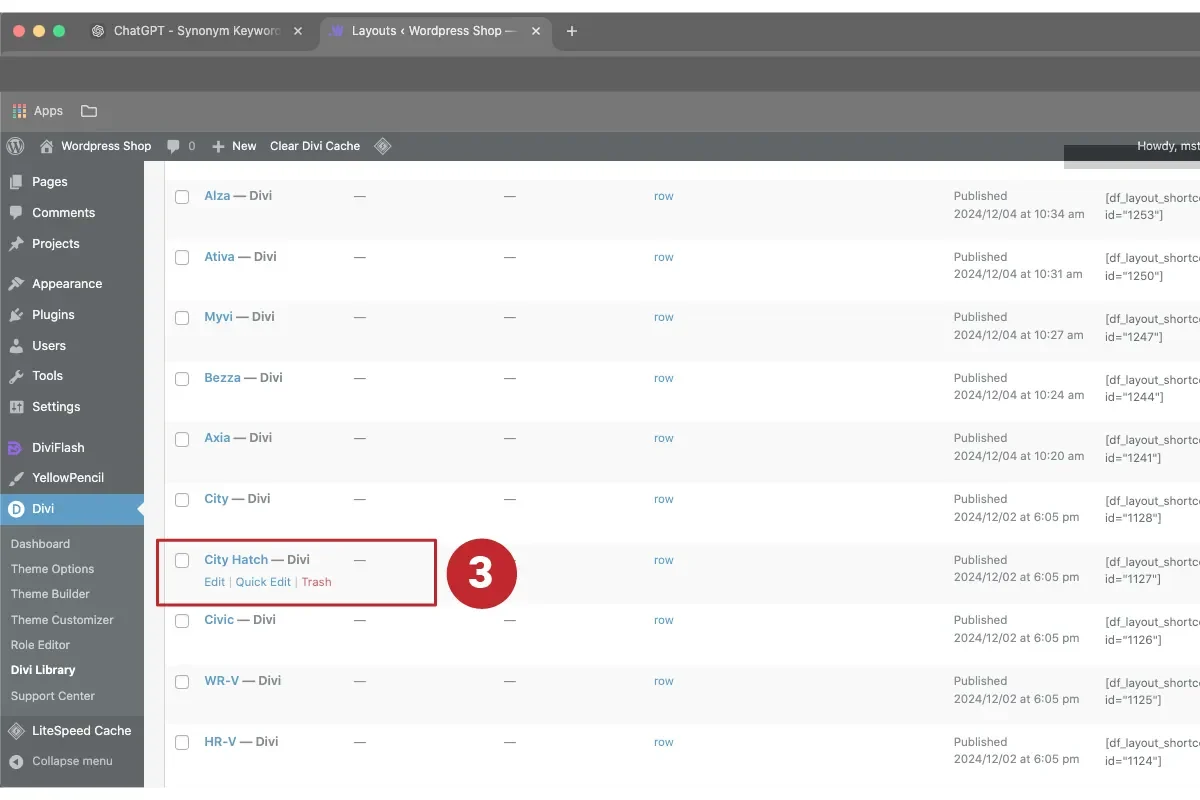
3. CHOOSE PRODUCT.
In the ‘Divi Library’ click which layout to edit.
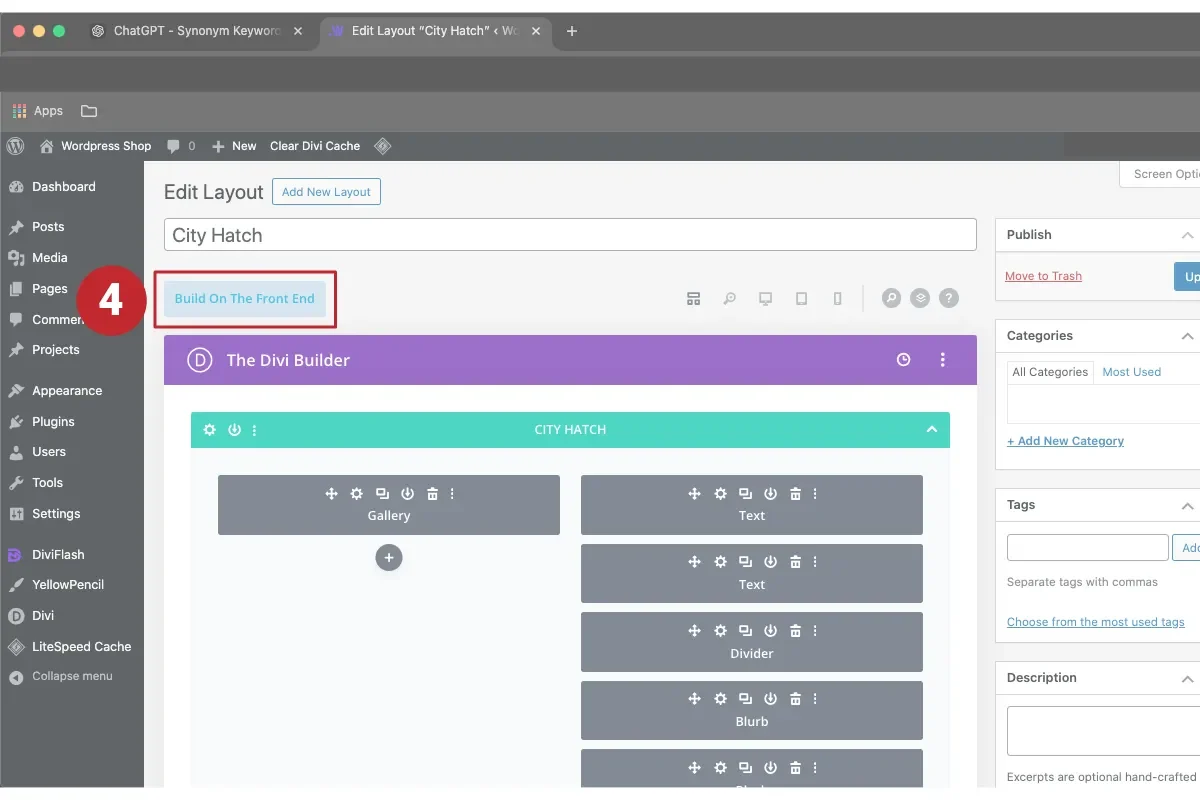
4. BUILD ON THE FRONT END.
Click ‘Build on the front end’ to open visual builder. It’s easier to see what you want to edit/change.
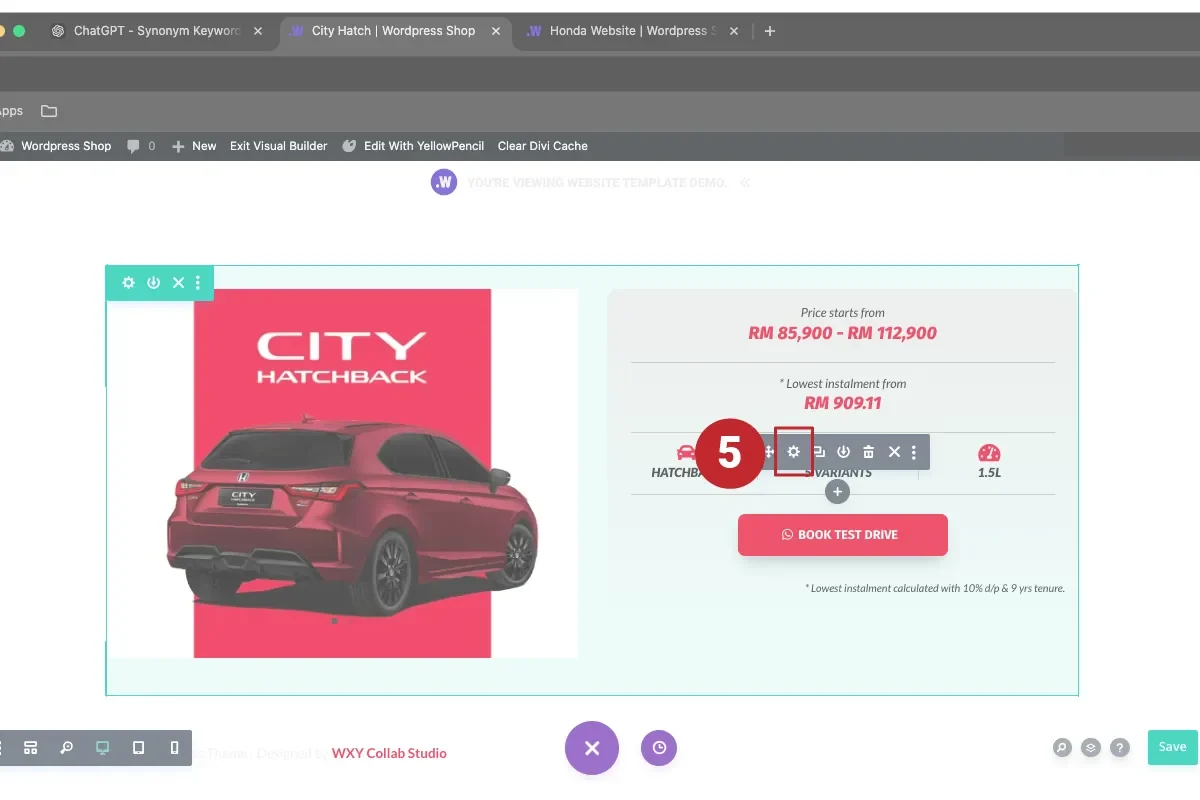
5. EDIT ICON.
Edit ‘options’ icon – car type, variants and engine.
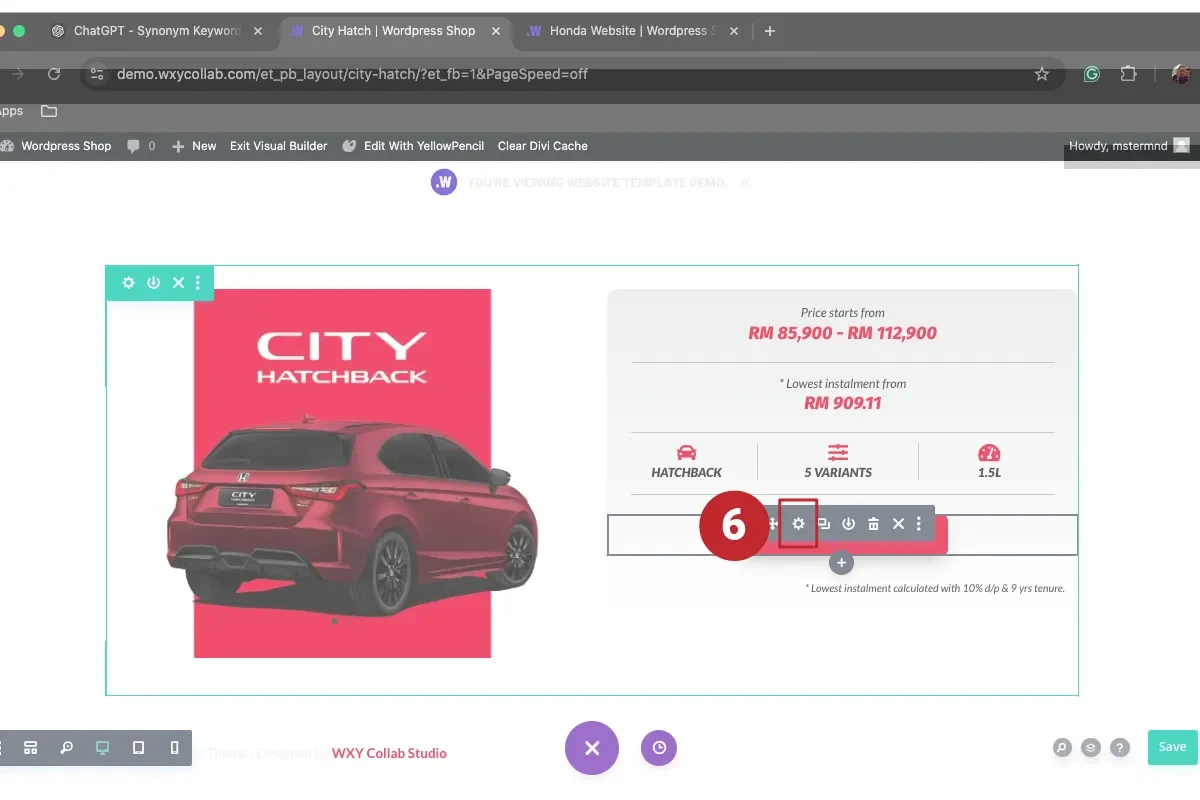
6. EDIT BUTTON.
Edit button with WhatsApp contact number.
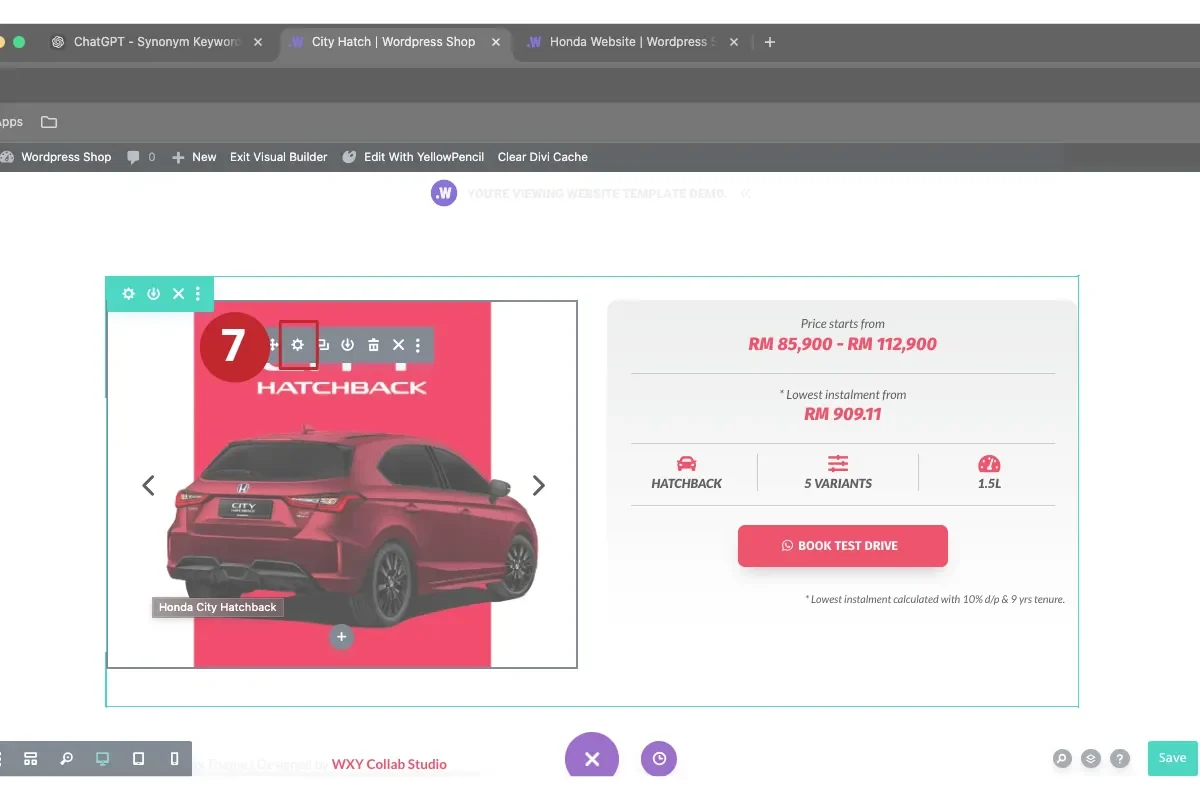
7. EDIT IMAGE.
Edit latest product image that you have.
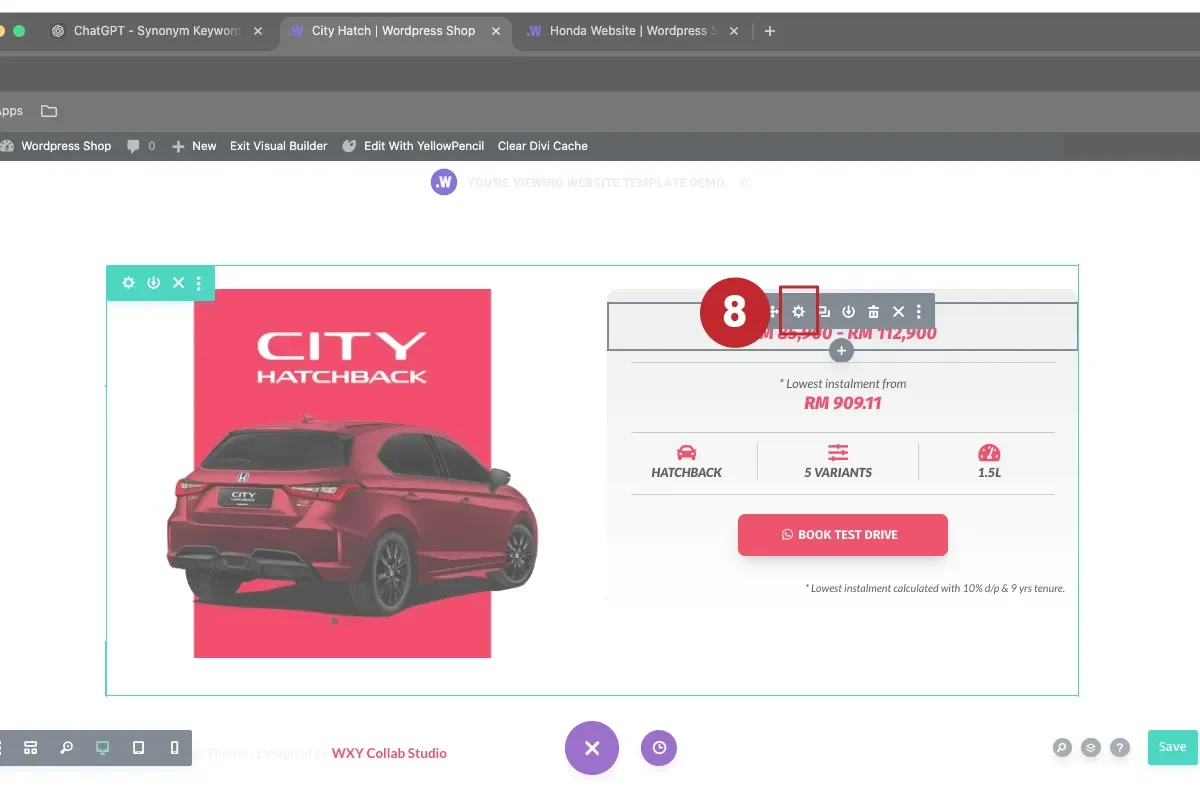
8. EDIT TEXT.
Edit latest product price range.
ALSO LEARN FROM THESE TUTORIALS.

Setup First Google Ads Campaign.

Keyword Research with Google Keyword Planner.

Start Edit with Divi.

How to Edit Text in Divi?

How to Edit Text Colour in Divi?

How to Edit Background Colour in Divi?

How to Edit Gallery in Divi?

How to Edit Image in Divi?

How to Edit Social Media Icon in Divi?

How to Add Image in Divi?

How to Edit Image Slider in Divi?

How to Edit Button in Divi?
