
HOW TO EDIT BUTTONS IN DIVI?
Divi Theme Builder is a 100% no-code website builder for WordPress website. Building and editing your website is even easier with ‘Visual Builder’. Even a Sales Advisor with zero knowledge in website building can edit our Sales Advisor website template. Follow this step-by-step guide on how to edit buttons in Divi with your WhatsApp link or phone number.
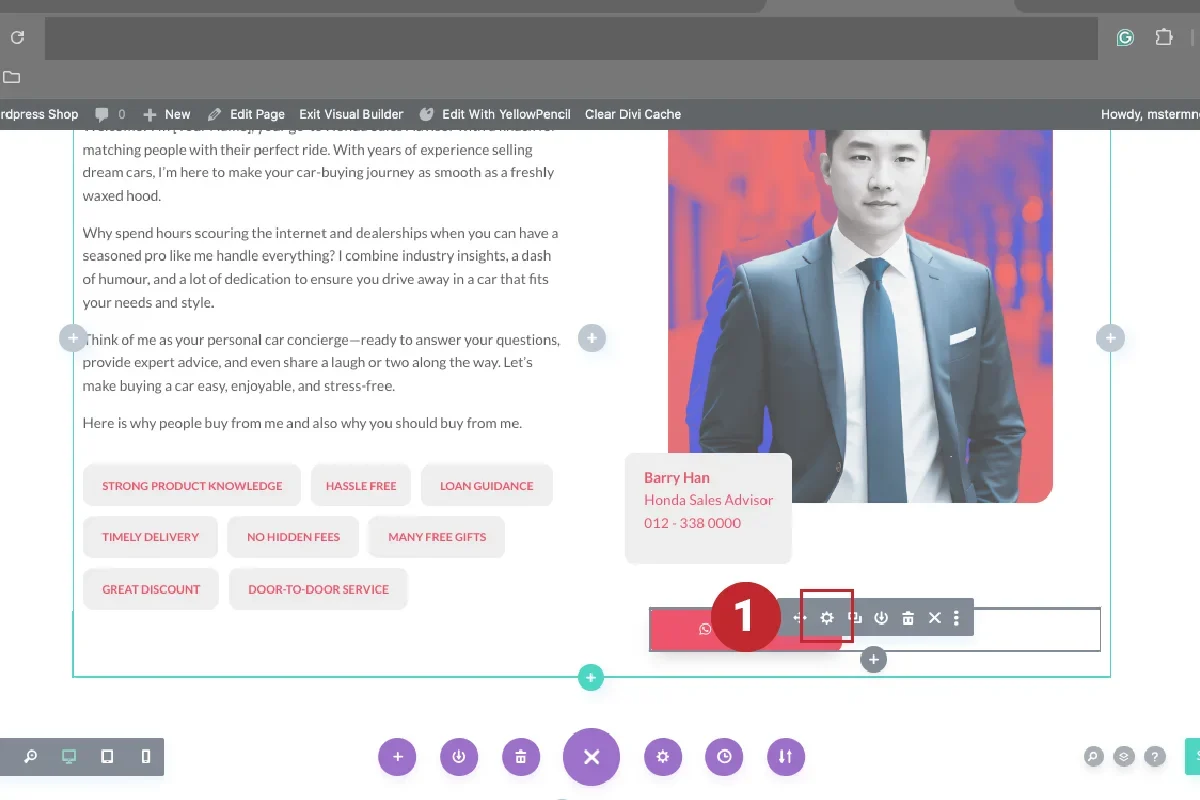
1. EDIT BUTTON.
Click on the button to reveal the options box and click the ‘Gear’ icon.
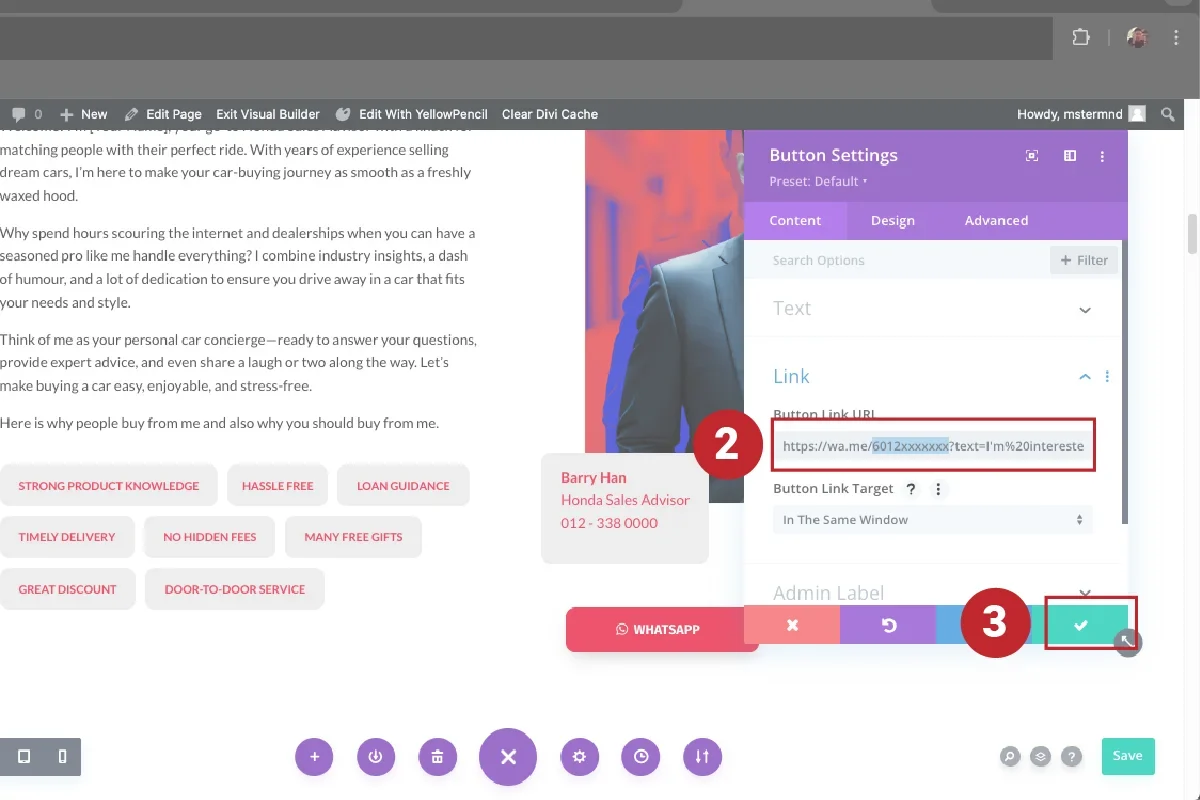
2. EDIT BUTTON LINK.
Once the ‘Button Settings’ pops up, click ‘Link’ and you will see ‘Button Link URL’. Update your contact number to in the WhatsApp URL. Then click the green tick button to confirm changes.

3. EDIT BUTTON (CTA).
Scroll down to CTA section in the image to start editing ‘WhatsApp’ and ‘Call Now’ buttons. Click on the button to reveal the options box and click ‘Gear’ icon. Update your contact number in the WhatsApp URL.
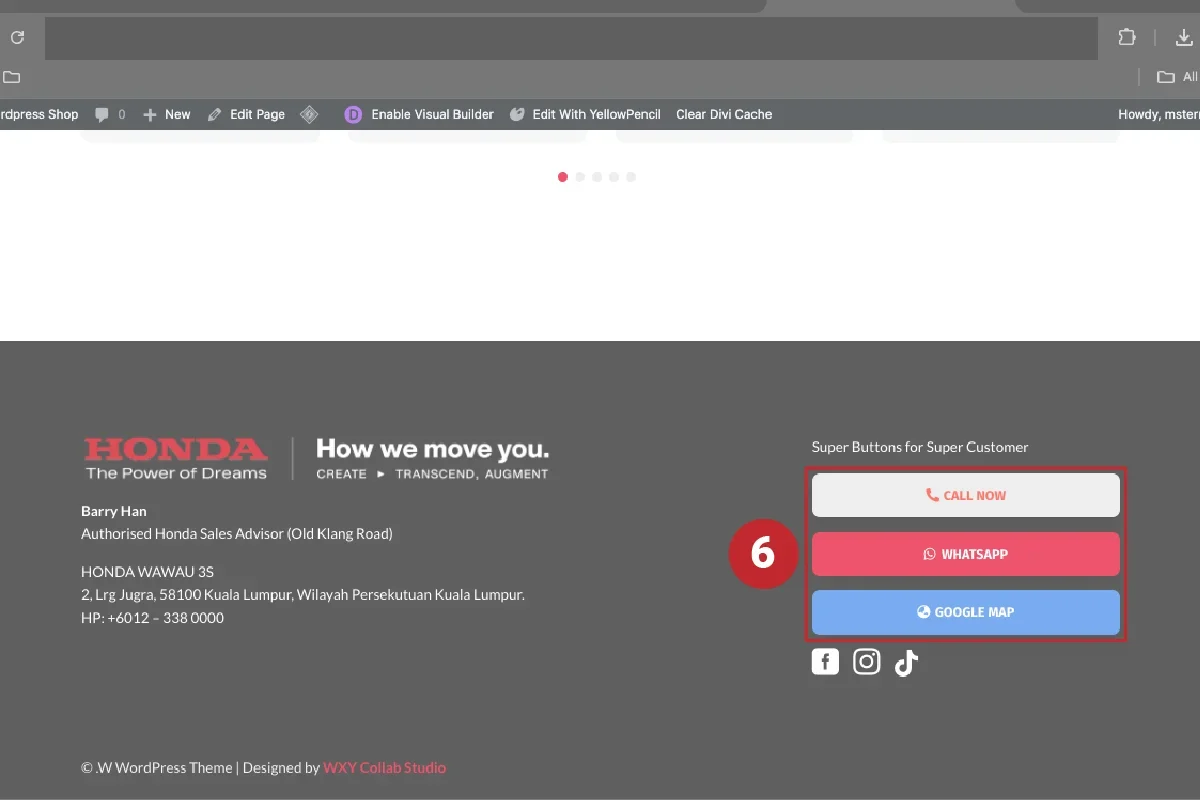
4. EDIT BUTTON (FOOTER).
At footer section, there are 3 buttons to update. ‘Call Now’ – update contact number. ‘WhatsApp’ – update contact number. ‘Google Map’ – update branch location.
ALSO LEARN FROM THESE TUTORIALS.

Setup First Google Ads Campaign.

Keyword Research with Google Keyword Planner.

Start Edit with Divi.

How to Edit Text in Divi?

How to Edit Text Colour in Divi?

How to Edit Background Colour in Divi?

How to Edit Gallery in Divi?

How to Edit Image in Divi?

How to Edit Social Media Icon in Divi?

How to Add Image in Divi?

How to Edit Image Slider in Divi?

How to Edit Button in Divi?
